
AI Image Generation & Editing, From Idea to the Next Creative Step
Turn a prompt into product imagery, character concepts and campaign visuals, or upload an image and describe the background, style or local change you want. Choose Seedream 5.0 Lite or Pro and start with one cost-conscious draft by default. Download the result, keep editing it, or take it into Canvas to create video.
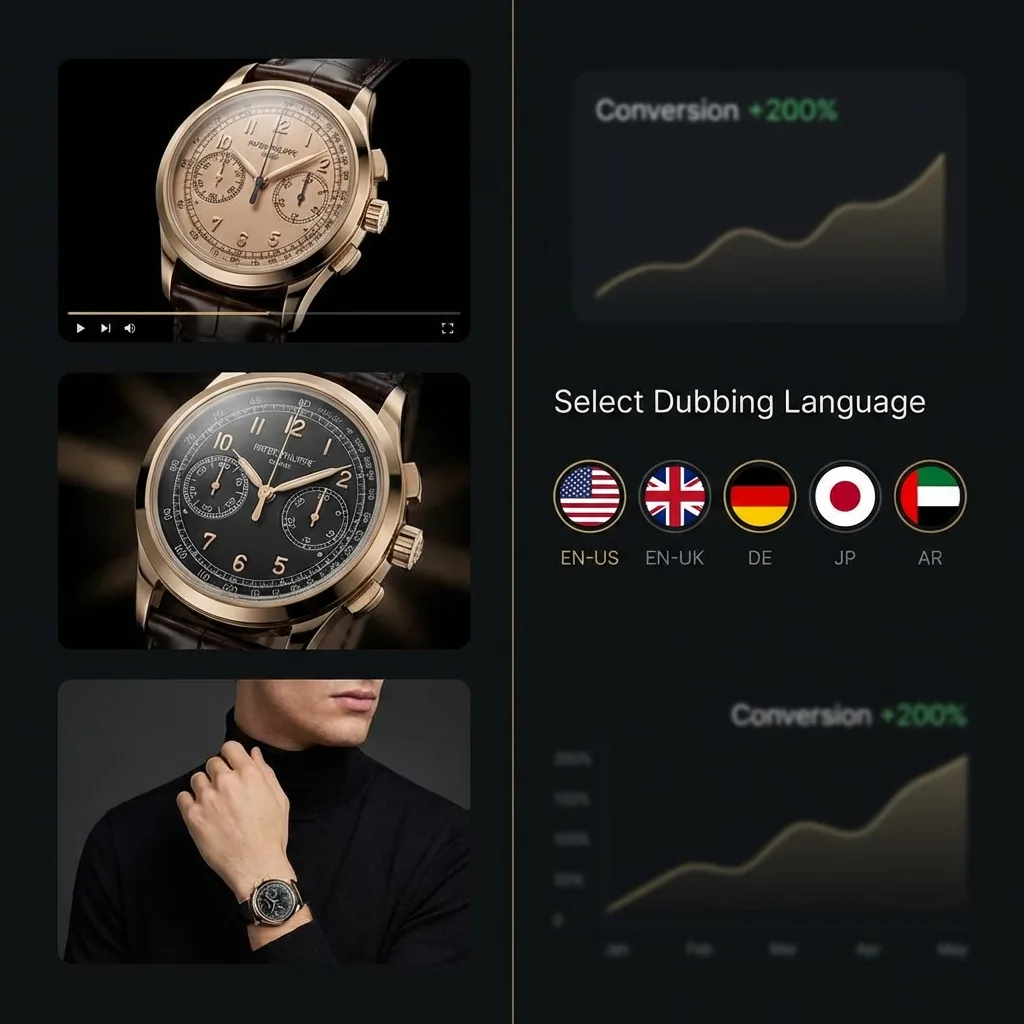
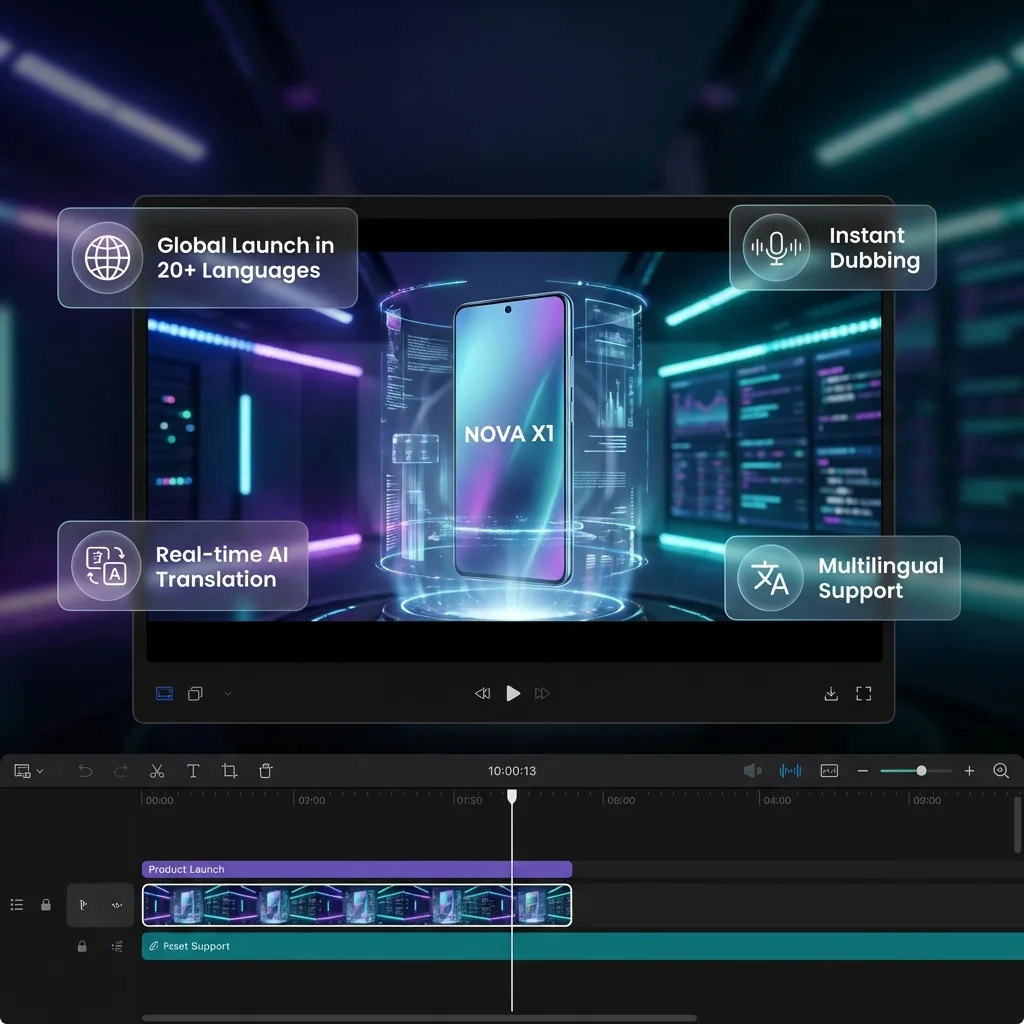
Who uses Image Generation
Real workflows from teams creating for global audiences
E-commerce imagery
Place a clean product shot into campaign scenes and create listing or detail-page visuals.
Characters and concepts
Create character looks, wardrobe and style references, then continue into video.
Campaign and social visuals
Produce event artwork, covers and content imagery in the right platform ratio.
Image editing and restyling
Keep the subject while replacing the setting, transforming style or exploring a new direction.
Core Features
Turn one sentence into a usable visual
Start from a blank canvas and create product shots, character concepts or campaign assets.
- ✓One image by default to validate direction at lower cost
- ✓Common aspect ratios with 1K / 2K / 4K output
- ✓Increase the candidate count only when comparison helps
Upload an image and edit in plain language
Skip complex retouching tools—say what should stay and what should change.
- ✓Replace backgrounds, relight scenes and change visual style
- ✓Preserve a product or character while creating variations
- ✓Iterate from any result without overwriting the last version
The result is not the end
Download a finished image or move directly into the next creative step.
- ✓Select a candidate and keep editing
- ✓Open it in Canvas and generate video
- ✓Save it to your Library for reuse
User Guide
Describe or upload
Start with a prompt, or upload the image to edit and describe the intended change.
Generate and choose
Pick a model, aspect ratio and resolution. Start with one image, then add candidates when needed.
Edit again or open Canvas
Download, save, keep editing, or carry the selected image into video creation.
Specs and limits
The hard facts you need before submitting, at a glance
More than generating an image—keep creating
Typical image generators: Generate, then download
Oiiyao: Cost-conscious first draft, add candidates on demand
Typical image generators: Usually switch to another editor
Oiiyao: Upload and change it with natural language
Typical image generators: Large batches can waste budget
Oiiyao: One by default; request more only when useful
Typical image generators: The flow ends at download
Oiiyao: Keep editing or open Canvas to create video
Frequently Asked Questions
Tools that work together
Chain the next step in your real workflow